 Template to Launch
Part 8 of 9
What you can take with you when you leave
What a builder's export usually includes and leaves out, and the steps for moving a site somewhere else.
Last reviewed
In a nutshell
- Most builders let you export something. Few let you export everything.
- Your words usually move. Your design usually doesn't.
- Look at the export options before you build, not after.
Why this matters on day one
Leaving feels far away when you start. But the answer to "what can I take?" can change which builder you choose. It costs nothing to ask early.
This page uses help pages from WordPress.com as examples. They describe both their own export and how they import from other builders. Treat the details as examples, because every builder is different and they change over time.
What an export file holds
An export is a file with your site's content, saved so you can load it somewhere else.
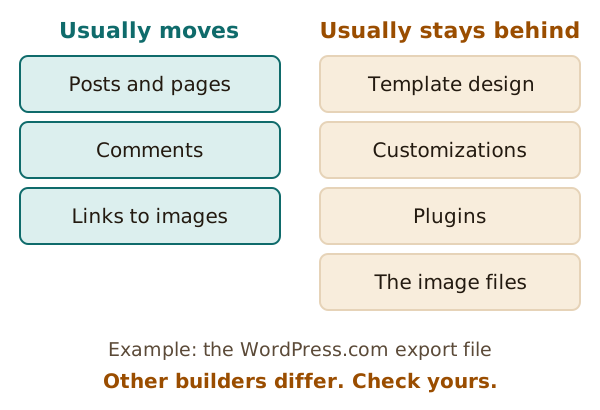
WordPress.com's export is a good example. It is saved as an XML file, a standard format many website platforms can read.[1] It holds your posts, pages, comments, categories and tags.[1]
It does not hold your theme design, your customizations or your plugins.[1]
Pictures need a closer look
Here's a surprise. That export file has links to your images, not the images themselves.[1]
So the new site fetches the pictures from your old site while it imports. That's why WordPress.com says to make your old site public first, so the images can transfer.[1]
For a Squarespace move, WordPress.com says to keep the old site public during the export and import.[2] The import may not bring every image, so you add the missing ones by hand.[2]
Some things don't export at all
WordPress.com's guide to importing from Wix says there is limited compatibility between the two platforms.[3] It brings over pages, images, menus and the site title.[3]
It also says blog posts can't be exported from Wix to other platforms.[3] Squarespace's export isn't complete either: some types of content may be left out.[2]
These are one company's descriptions of another's product, so check the builder's own help pages for the current situation.
The design stays behind
Look at the Wix example again. The import won't recreate your exact Wix design.[3] The same goes for most moves. You pick a new design and fit your content into it.
That is the price of templates. They belong to the builder.
A typical move, in five steps
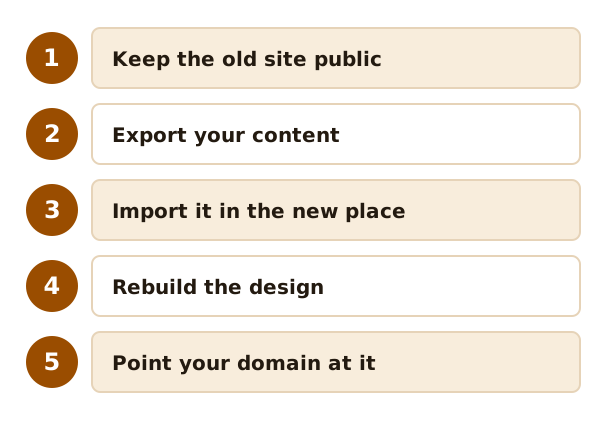
- Leave your old site public.
- Export your content.
- Import it into the new place.
- Rebuild the design and check every page.
- Point your domain at the new site. See connecting a domain.
Only cancel the old plan once the new site works.
Last, a short check to run before any launch: before you publish.
Sources
- Export WordPress Content, WordPress.com Support (accessed 2026-10-22)
- Import from Squarespace to WordPress, WordPress.com Support (accessed 2026-10-22)
- Import from Wix to WordPress, WordPress.com Support (accessed 2026-10-22)