 Template to Launch
Part 4 of 9
How builders handle phone screens
How a builder turns a desktop page into a phone page, and what you can change in the mobile view.
Last reviewed
In a nutshell
- Your site has to work on phones, tablets and computers.
- Builders do most of that for you, using responsive layouts.
- Some builders also let you edit the phone view on its own.
One site, many screens
People visit from phones, tablets, laptops and big monitors. A page that fits one can break on another.
The fix has a name: responsive web design. It is an approach for making a page fit the full range of devices and screen sizes.[1] The page adapts on its own, whether it's viewed on a tablet, phone, television or watch.[1]
A builder does the hard part. Its templates are made to be responsive. WordPress.com says all of its themes respond to every screen size, including phones.[2]
What you'll see on a phone
On a wide screen, sections can sit side by side. On a narrow screen there's no room, so they stack in one column.
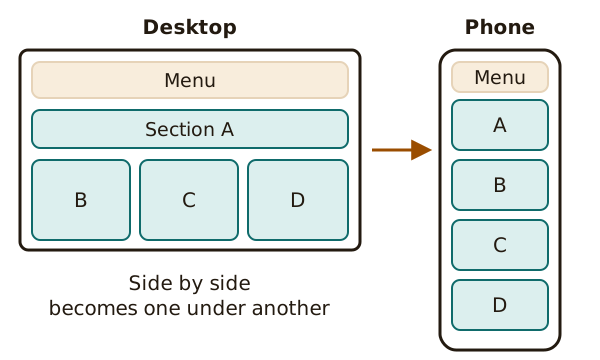
Menus shrink too. A long row of links often turns into a small button that opens a list.
Checking the phone view
Don't trust the desktop view alone. Many builders let you switch screen sizes right in the editor or the theme demo. WordPress.com's theme demos have a selector to switch between desktop, tablet and mobile.[2]
Also look at the live site on a real phone. A real phone shows you things a preview can miss.
Editing the mobile view
Some builders have a separate mobile editor. Wix is one. It makes a phone version from your desktop content on its own.[3] Items that don't work well on phones are hidden by default.[3]
In that editor you can make changes just for phones:
- Reorder sections. Put your phone number at the top on mobile only.
- Hide a section. If it isn't useful on a phone, hide it. You can show it again later.[4]
- Add phone-only items. Items added on mobile don't appear on the desktop version.[3]
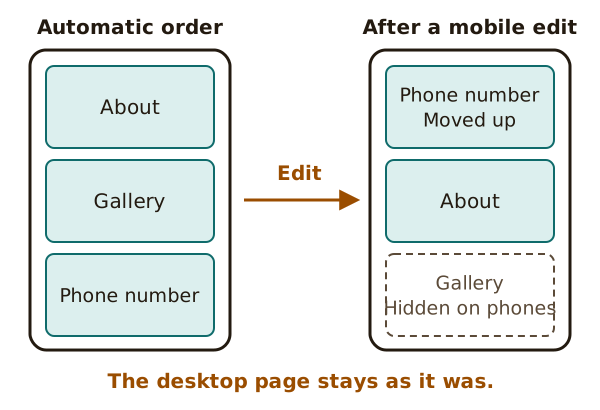
Changes made in the mobile view don't touch your desktop design.[3]
Not every builder gives you this much control. Some give you one layout and trust it to adapt. Both ways are normal.
What to do about it
Before you publish, scroll through every page on a phone. Look for text that is too small, buttons that are hard to tap, and images that push the page sideways.
Pages also hold things people can send you. See forms and built-in features.
Sources
- Responsive web design, MDN Web Docs (accessed 2026-10-22)
- Themes in WordPress, WordPress.com Support (accessed 2026-10-22)
- Wix Editor: About the Mobile Editor, Wix Help Center (accessed 2026-10-22)
- Wix Editor: About Sections, Wix Help Center (accessed 2026-10-22)